The Notes Panel is a side panel you can open alongside the Manuscript Editor to keep reference material, outlines, worldbuilding details, and beta feedback visible while you write.
The content shown in the Notes Panel is contextual to the chapter you are currently working on, helping you stay aligned with your story without leaving the editor.
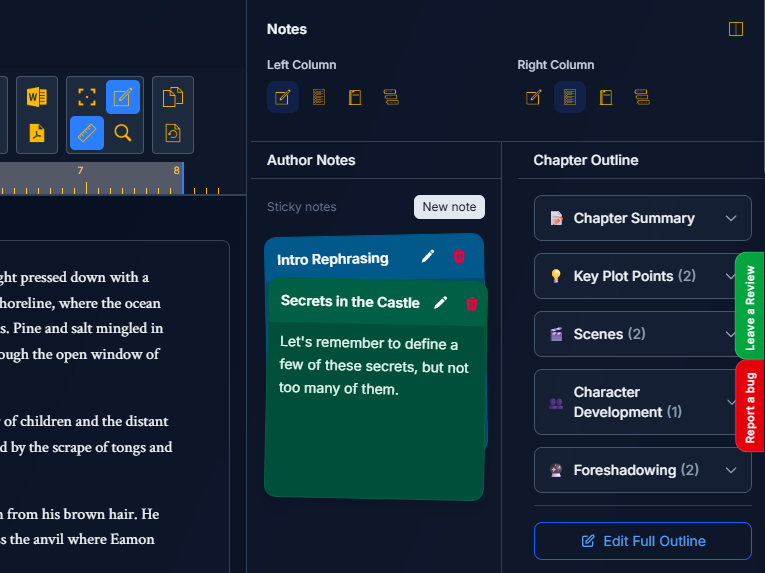
Opening the Notes Panel
Open the Notes Panel using the Notes Panel button in the manuscript editor toolbar. On desktop, it appears as a resizable panel on the right side of the editor.
Panel Layout & Navigation
The Notes Panel is organized into four tabs:
Author Notes
Chapter Outline
Worldbuilding Elements
Beta Feedback
Switch between tabs using the icon buttons in the panel header.
Single-Column vs. Two-Column View
On desktop, you can switch between:
Single-column view — one tab visible at a time
Two-column view — two different tabs side by side (for example, Outline on the left and Worldbuilding on the right)
This allows you to reference multiple types of information while drafting.
Tab Details
1) Author Notes (Sticky Notes)
Use this tab for quick, personal notes tied to the current chapter.
What you can do:
Create sticky notes
Edit note titles and content
Change note colors
Delete notes
2) Chapter Outline
Displays the outline information for the active chapter.
You may see sections such as:
Chapter summary
Key plot points
Scenes
Character arcs
Themes
Conflicts
Foreshadowing
Additional notes (if provided)
3) Worldbuilding Elements
Shows relevant worldbuilding information while you write.
Worldbuilding elements can appear in the Notes Panel in two ways:
Auto-pinned elements
Elements are automatically shown when their tags are detected in the manuscript text for the current chapter.Manually pinned elements
You can manually pin any worldbuilding element using the + Pin button, regardless of tags or chapter content.
Multiple elements can be pinned at the same time.
Version behavior
The Notes Panel always displays the version of each element that is correct for the chapter you are currently writing.
If no version exists for the current chapter, the most recent version before that chapter is used.
Future versions are intentionally ignored.
Element behavior
Pinned elements remain visible across chapters
Auto-pinned elements appear when matching tags are detected in the manuscript
Elements can be expanded to view their cards and fields
Cards can be opened or collapsed individually for focused reference
Pinning elements
Click + Pin to open the pin picker
Search for elements by title or tags
Select any element you want to keep visible in the Notes Panel
For more details, see Worldbuilding Versioning.
4) Beta Feedback
Displays beta reader feedback for the active chapter.
What you can see:
Rating averages (with response counts)
Open-ended responses grouped by question
Expandable responses by reader
This tab is read-only and is intended for reviewing feedback while revising.
If no feedback exists, you’ll see a message indicating that no feedback is available yet.
Tips for Productive Use
Use Chapter Outline + Author Notes in two-column view while drafting
Keep Worldbuilding Elements open during lore or character heavy scenes
Review Beta Feedback while revising to address reader concerns directly