Worldbuilding in Writing Crucible is built around elements (characters, locations, factions, magic systems, etc.) made up of cards and fields. Everything auto-saves, so you can focus on building instead of babysitting a save button.
Follow the steps below to create your first worldbuilding element.
Step-by-Step Guide
1. Open the Worldbuilding Portal
From your Dashboard, make sure you already have a Book or Series created.
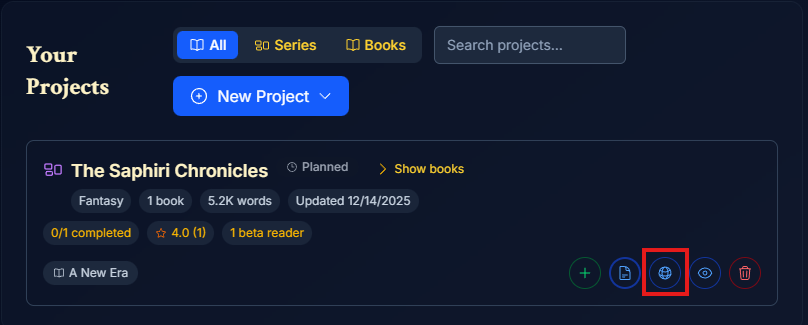
Locate the project card
Click the Worldbuilding icon (🌐 globe icon) on the card
2. Create a New Element
Inside the Worldbuilding Portal:
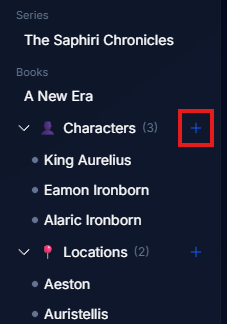
Find the type of element you want to create (Character, Location, Organization, etc.)
Click the “+” icon next to that element type
3. Configure the Element
In the creation dialog:
Title – Name the element
Tags – These are critical. Tags allow the manuscript editor to automatically pin this element to the notes panel when you’re writing.
First Appearance – Select where this element first appears in the story
If you’re unsure, leave it at Book 1 → Chapter 0 (Prologue)
You can add versions later at any time.
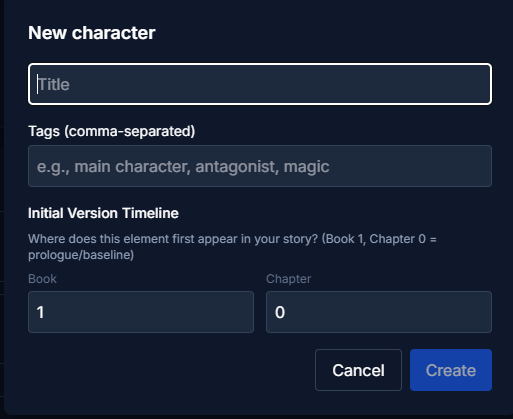
Click Create when finished.
4. Open the Element
Click on the newly created element to open it on the canvas
5. Add Your First Card
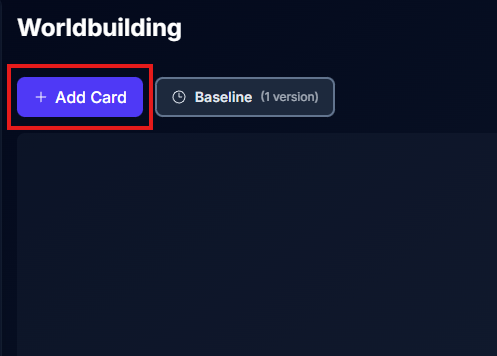
Click “+ Add Card”
This creates a new section inside the element (for example: Background, Appearance, History, etc.)
6. Rename the Card
Click directly into the card title
Start typing to rename it
(No extra menu required)
7. Edit the Card Structure
Click the Edit icon in the top-right corner of the card
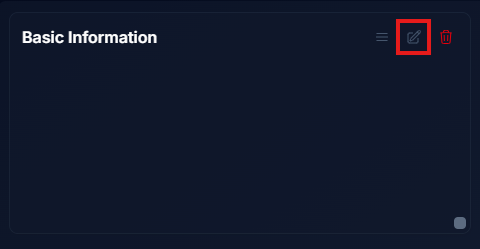
This opens the card editor.
8. Add Fields to the Card
Inside the card editor:
Click “+ Add Field”
Enter a Field Title
Choose a Field Type (text, list, etc.)
Toggle “Show Title” on or off
Turn it off if you want a cleaner, more narrative look
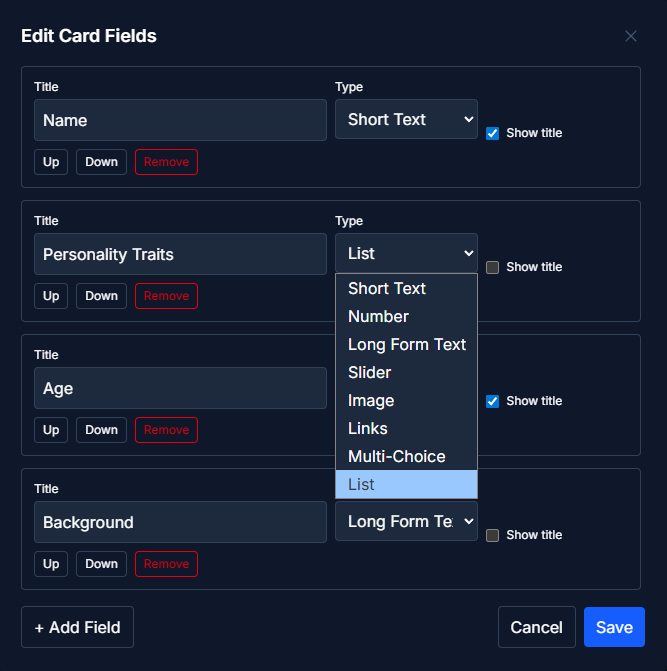
You can add as many fields as you want to a single card.
9. Save the Card
Click Save
Your fields will immediately populate inside the card
10. Resize the Card (Optional)
Click and drag the gray handle in the bottom-right corner of the card
Resize it however you like to fit your layout
11. Reposition the Card (Optional)
Click and drag the three horizontal lines in the top-right corner of the card
Drop it anywhere on the canvas
Auto-Save Behavior (Important)
Worldbuilding elements auto-save continuously.
The auto-save indicator appears near the version indicator above the canvas
No manual save button is required
Changes are preserved automatically as you work
Pro Tips
Use consistent Tags across elements to improve automatic pinning while writing
Break large concepts into multiple cards instead of one massive card
Don’t over-structure early, cards and fields can be added or changed at any time