Finished with a project, or made a test book you don't need? You can delete it to tidy your dashboard and free up a book slot on your plan. Deleting is permanent, so read what each option removes before you confirm.
Before you delete
It can't be undone. A deleted book or series is removed from our servers straight away. There's no trash or recycle bin to restore it from.
Keep a copy if there's any chance you'll want the text later. See Exporting Your Manuscript.
Only the owner can delete. If you're a collaborator on someone else's book, you won't see the option to delete it.
Delete a standalone book
On the Author Dashboard, click the menu button (⋮) in the top-right corner of the book's card and choose Delete Book.
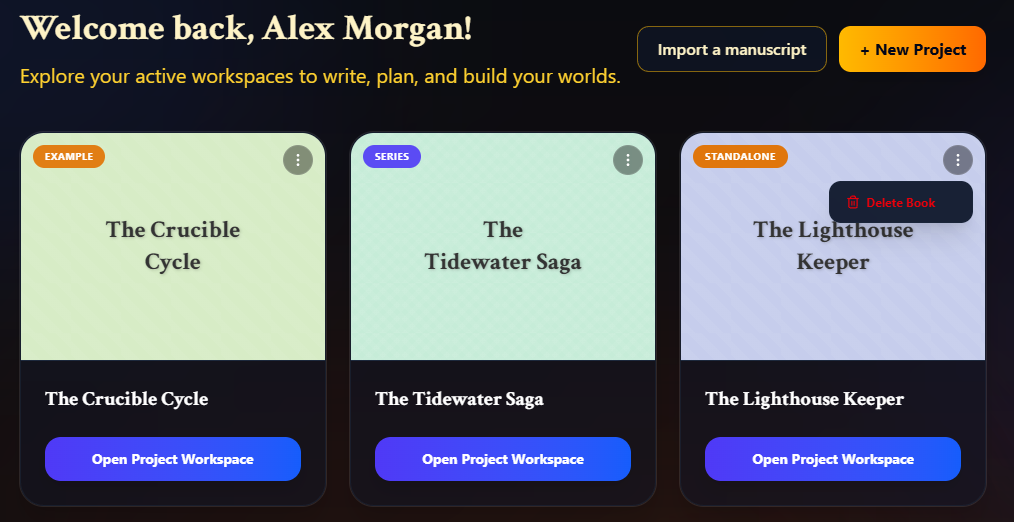
Check the title in the Delete Book dialog, then click Delete Book.
This removes the book and everything in it: all its chapters and other sections, saved versions, outlines and notes, the book's own worldbuilding, its cover, its writing analytics, and any beta reader feedback on it.
You can also delete a book from inside its workspace: open Settings from Workspace Home, scroll to Danger Zone and click Delete Book.
Delete a book in a series
Books in a series don't have their own card on the dashboard. To delete one:
Open the series workspace and, under Books in this Series, click Write on the book.
On the book's Workspace Home, click Settings.
Scroll to Danger Zone and click Delete Book, then confirm.

The book and its chapters are removed and it disappears from the series. The series' shared worldbuilding stays, because the other books still use it.
Want to keep the book, just not in this series? Take it out of the series from its Settings instead. See "Moving a book into or out of a series" in Creating a New Series.
Delete a series
Click the menu button (⋮) on the series' card and choose Delete Series. You can also use Delete Series in the Danger Zone of the series' Series Settings.
If the series has no books, only the series itself is deleted. If it has books, you choose what happens to them:
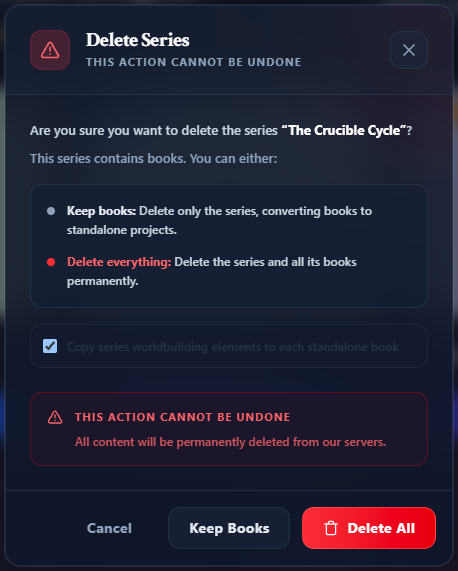
Keep Books
Deletes only the series. Each of its books becomes a standalone book on your dashboard, with its chapters intact.
The series' planning and worldbuilding are deleted with it. To keep the worldbuilding, leave Copy series worldbuilding elements to each standalone book ticked (it is by default): every book gets its own copy of the characters, places and other elements. On the Free plan, these copies count toward your worldbuilding limit. If there isn't room for a copy in every book, the series isn't deleted (nothing is removed, including its cover) and a message says your plan's worldbuilding allowance can't hold a copy for each book. Untick the box, or upgrade, and try again.
Delete All
Deletes the series, all of its books with their chapters and everything in them, and the series' worldbuilding.
Your plan's limits
Deleted books no longer count toward your plan's book limit or word limit, so deleting a book frees a slot for a new one.
The example project, The Crucible Cycle, can be deleted the same way. See The Example Project.