The Word Count Widget is a draggable, floating progress indicator that stays visible while you write. It provides real-time feedback on your writing progress, goals, and pace without interrupting your workflow.
The widget tracks the active chapter and can display different metrics such as word count, session progress, goals, WPM, and a writing timer. Its position and settings are saved automatically.
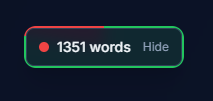
Where It Appears
The widget floats over the manuscript editor and remains visible while writing unless manually hidden.
It always reflects the currently open chapter in the manuscript editor.
Moving or Hiding the Widget
Move: Click and drag the widget anywhere on the screen
Hide: Click Hide on the widget
Show again: Click the Show Word Count button in the bottom-left corner of the editor
Your position preference is saved automatically.
Display Modes
Right-click the widget (or long-press on touch devices) to switch display modes.
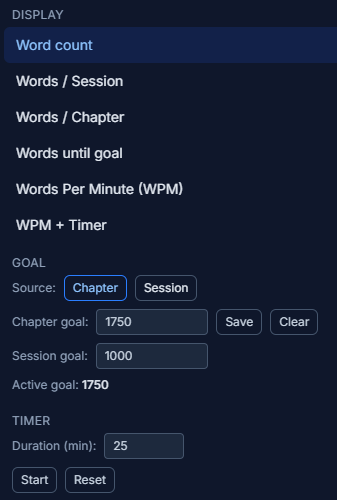
Available Modes
Word Count
Shows total words in the active chapterWords / Session
Shows words written during your current writing sessionWords / Goal
Shows current words versus the active goalWords Until Goal
Shows how many words remain to reach the active goalWords Per Minute (WPM)
Displays your live typing speedWPM + Timer
Displays WPM alongside a countdown writing timer
Goal Types
The widget supports two types of goals:
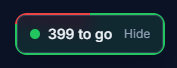
Chapter Goal
Uses the chapter’s target word count (if set)
Can be edited or cleared directly from the widget menu
Updates the chapter’s target word count in the editor when saved
Session Goal
A personal goal for the current writing session
Stored locally for convenience
Does not affect chapter metadata
Active Goal
The widget always uses one active goal at a time (Chapter or Session), which determines:
Goal progress
Words remaining
Border animation behavior
Border Progress Indicators
The widget’s border provides a visual representation of progress, changing behavior depending on the active mode.
Border Behavior by Mode
Word Count
Red border fills clockwise in green as you approach the active goal
(Defaults to Chapter Goal unless changed)Words / Session
Red border fills clockwise in green as you approach the Session GoalWords / Goal
Red border fills clockwise in green based on the active goalWords Until Goal
Red border fills clockwise in green as remaining words decreaseWPM
Red border with a green fill that reacts dynamically to typing speed
(Acts like a speedometer for writing pace)WPM + Timer
Red border fills clockwise in green as the timer counts down
Writing Timer (WPM + Timer Mode)
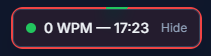
When using WPM + Timer, the widget includes a built-in writing timer:
Set a duration (in minutes)
Start, pause, or reset at any time
Timer progress is reflected in the border animation
This is ideal for timed writing sprints.
Session Words (How They’re Tracked)
Session word counts reflect words added during your current writing session.
When available, Writing Crucible uses recent analytics data to load and continue tracking your most recent session automatically.
How WPM Is Calculated
Writing Crucible calculates Words Per Minute (WPM) using a rolling 15-second window to provide fast, responsive feedback.
Here’s how it works:
The editor measures how many words are written over a 15-second span
That value is multiplied by 4 to estimate per-minute speed
The result updates continuously as you type
This method avoids waiting a full minute before showing meaningful data and allows WPM to respond quickly to changes in pace.
Important notes:
Brief pauses may cause short-term fluctuations
WPM stabilizes naturally during sustained writing
WPM is intended as a real-time pacing indicator, not a long-term average
Tips & First-Time Help
A built-in tooltip appears the first time you see the widget, explaining:
Dragging to reposition
Right-click / long-press for more options
You can dismiss the tooltip at any time.
Troubleshooting
“Words / Goal” shows no progress
Set a Chapter Goal or Session Goal in the widget menu and select which goal to use.
The widget disappeared
Click Show Word Count in the bottom-left corner of the editor to restore it.
Why This Matters
The Word Count Widget is designed to:
Keep progress visible without breaking focus
Support both long-term goals and short writing sprints
Adapt visually to how you write, not force a single workflow
Use it as lightly or as deeply as you want — it’s there when you need it, and out of the way when you don’t.