Templates allow you to quickly apply a pre-built structure to a worldbuilding element, saving time and ensuring consistency across characters, locations, magic systems, and more.
Templates define cards and fields only. They do not create content for you, and they do not manage story timelines automatically.
What Templates Do (and Don’t Do)
Templates do:
Add a structured set of cards and fields to an element
Provide a consistent organizational layout
Apply only to the currently active version of an element
Templates do not:
Write content for you
Automatically apply to other versions
Merge with existing structure
Applying a Template
1. Open the element
Navigate to the worldbuilding element you want to apply a template to.
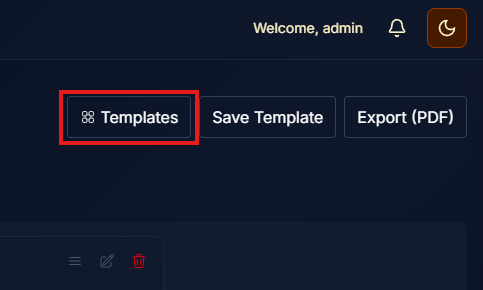
2. Open Templates
Click Templates to open the Template Marketplace.
3. Browse or search templates
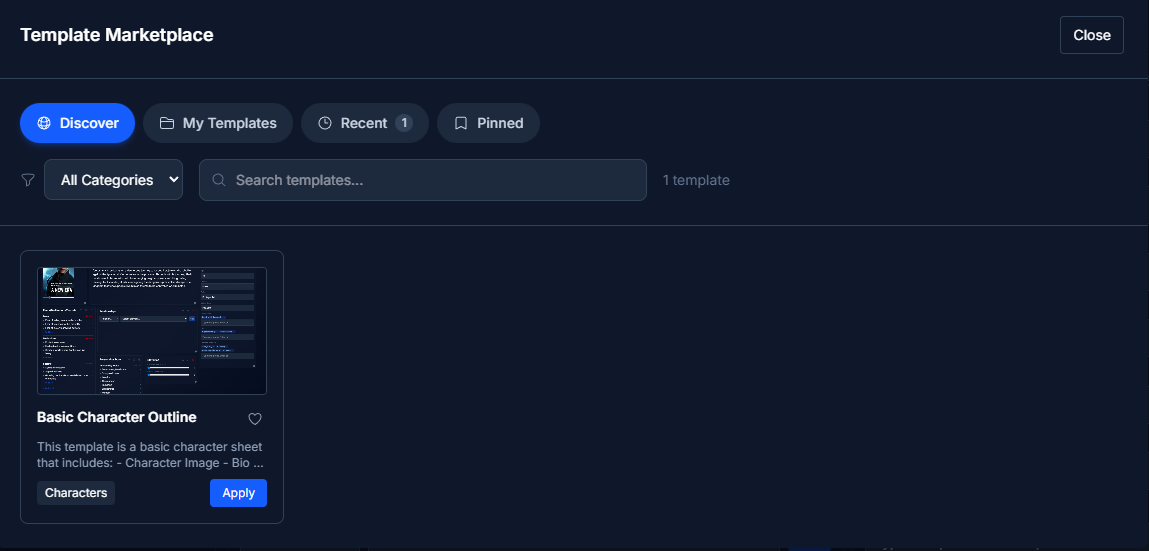
In the Discover tab, you can:
Search all public templates
Filter by category (Character, Location, Magic, Organization, etc.)
4. View template details (optional)
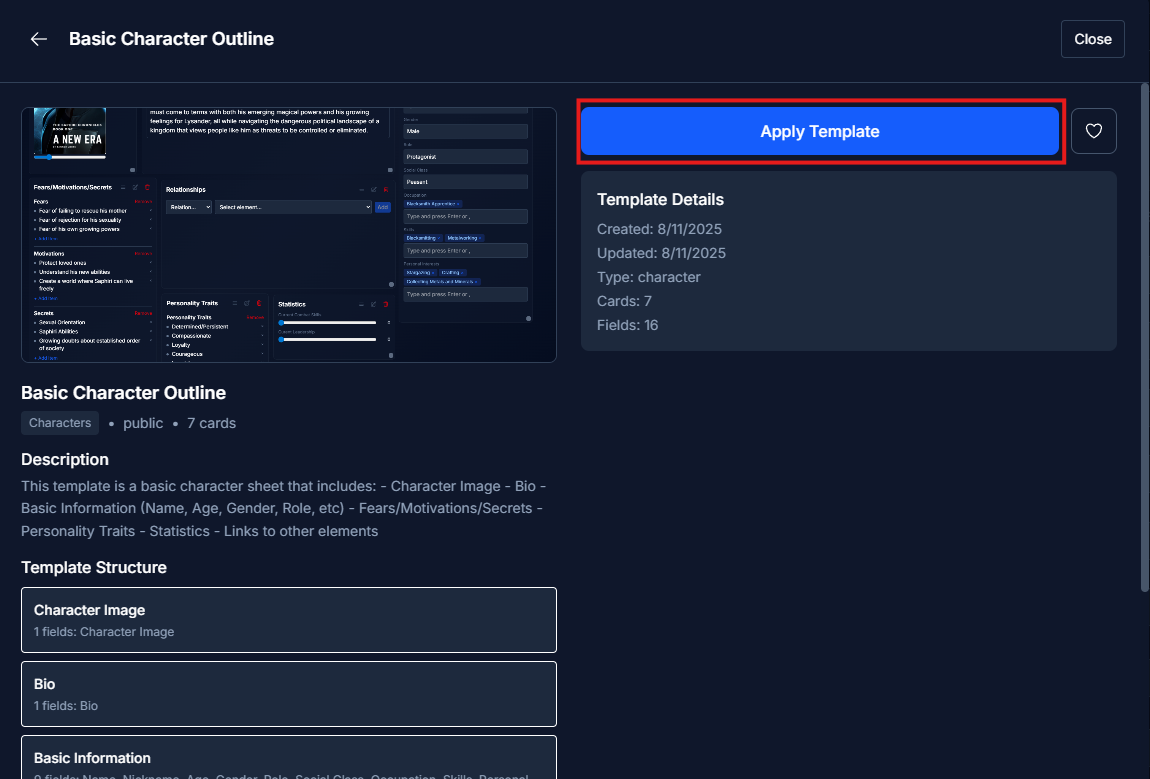
Click on a template to view:
Its card and field structure
A description of its intended use
Screenshots (if provided)
5. Apply the template
Click Apply from either:
The template search results, or
The template detail view
If the current version already contains cards or fields, you will be shown a warning before the template is applied.
6. Favorite templates for quick access (optional)
Click the heart icon on a template to favorite it.
Favorited templates appear in the Pinned tab for easy access later.
What Happens When a Template Is Applied (Important)
When you apply a template:
The template replaces all existing cards and fields in the current version of the element
You must confirm before any existing structure is overwritten
Other versions of the element are not affected
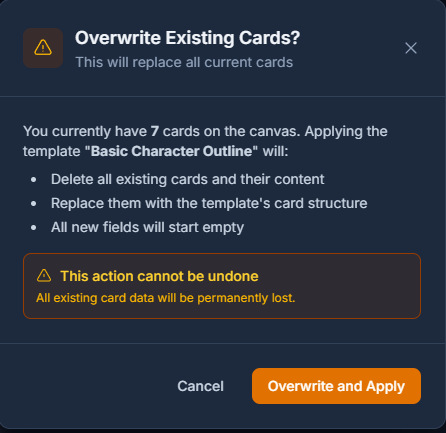
You'll always be asked to confirm before existing cards are replaced.
This action:
Cannot be undone
Does not delete the element itself
Does not impact past or future versions
Templates and Versioning
Templates are applied only to the currently active version of an element.
If your element has multiple versions:
The template affects only the version you are currently viewing
Other versions retain their existing structure and data
Recommended workflow
For best results:
Apply a template before creating additional versions, or
Create a new version first and apply the template to that version
This allows you to experiment with structure without losing earlier work.
Template Marketplace Tabs
The Template Marketplace includes the following tabs:
Discover – Browse and search public templates
My Templates – Templates you’ve created (public and private)
Recent – Templates you’ve used recently
Pinned – Templates you’ve favorited for quick access
Best Practices
Apply templates early, before heavily customizing an element
Use versioning to preserve older structures before applying a new template
Choose templates based on structure, not content expectations
Remember that templates define how information is organized, not what the information is
Summary
Templates provide a fast, consistent way to structure worldbuilding elements.
They:
Replace existing structure in the active version
Work best when applied early
Pair naturally with versioning for experimentation and evolution
Used correctly, templates help you spend less time organizing and more time writing.