Templates are created from an existing worldbuilding element. A template captures the card and field structure only, not the content inside those fields.
Step-by-step
1. Open the element you want to turn into a template
Navigate to the worldbuilding element that already has the structure you want to reuse.
2. Save the template
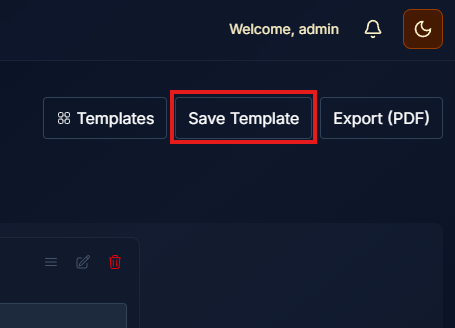
Click Save Template in the element toolbar.
3. Fill out the template details
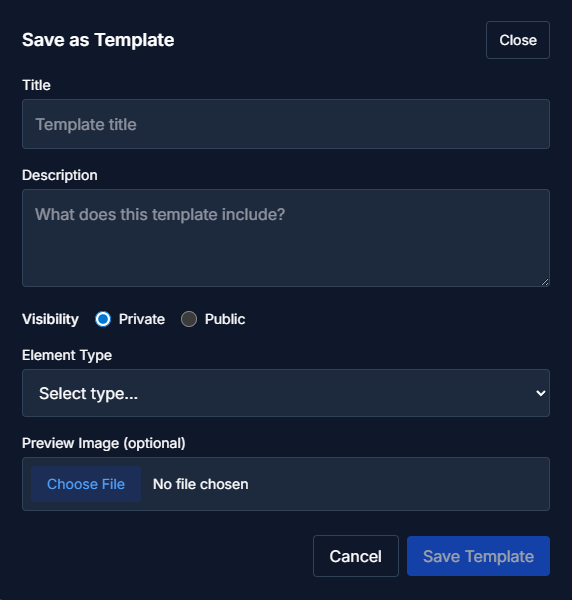
In the Save Template form, complete the following fields:
Title (required)
Description (required)
Visibility (required)
Private: only visible to you
Public: available to other users in the Template Marketplace
Element Type (required)
Preview Image (optional, screenshot recommended)
4. Save the template
Click Save Template to create the template.
Once saved, the template becomes available immediately.
Managing Your Templates
Templates you create appear in the My Templates tab of the Template Marketplace
You can edit a template’s:
Title
Description
Visibility
Element Type
Preview Image
by clicking the pencil icon on the template
You can delete the templates you've created at any time.
To change the structure of a template (cards or fields), you must create a new template
Important Notes
Templates capture structure only, not content
Editing a template does not update elements where it has already been applied
Structural changes always require creating a new template