The Timeline puts your story's events on a calendar, so you can see when things happen and how long they last. It handles real-world calendars and invented ones, with your own months, weekdays, seasons, eras and moons.
Opening the Timeline
In the project sidebar, under Book Planning, click Timeline. The Timeline has two parts:
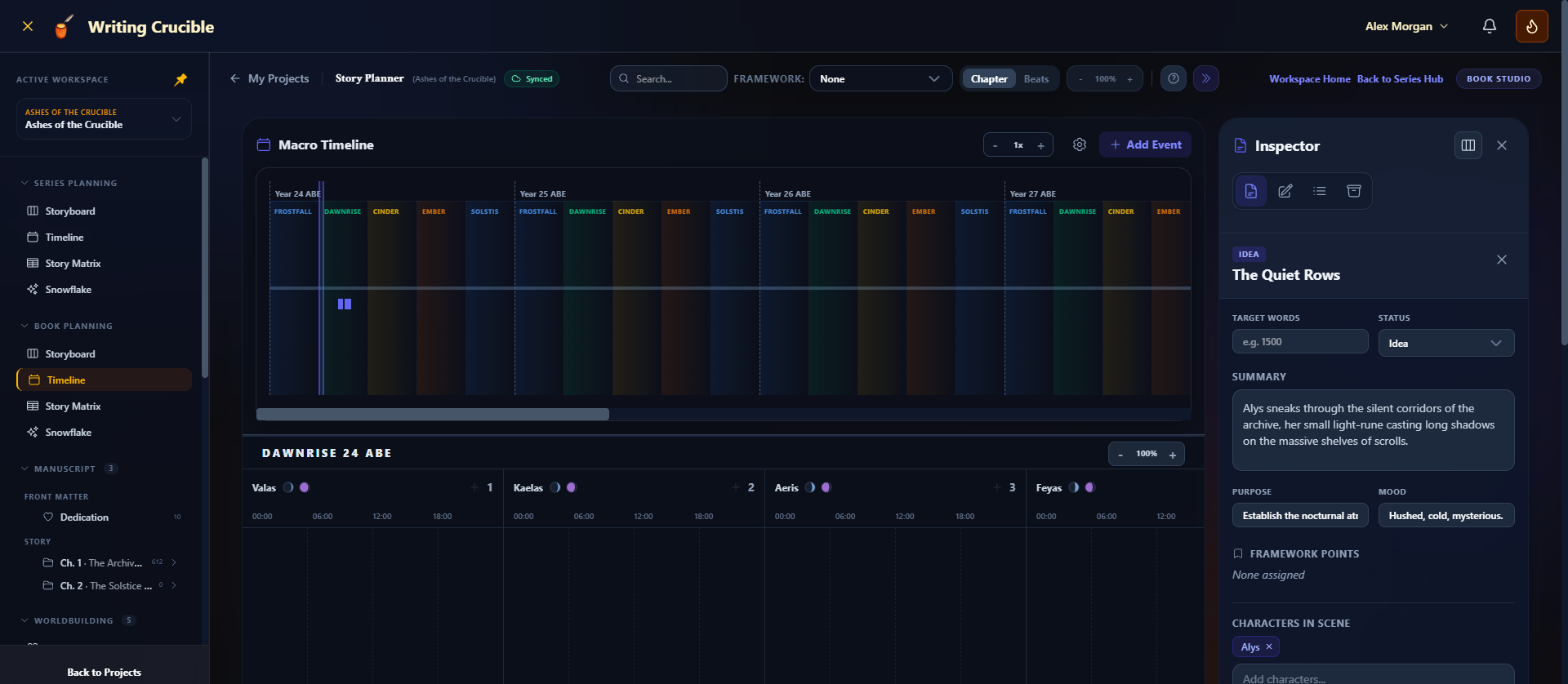
Macro Timeline at the top: the whole span of your story, year by year, with a bar for each event. Click anywhere on it to jump the calendar below to that date. The highlighted band shows which part of the calendar you're looking at. Use - and + to zoom it in and out.
The calendar below: about six months, day by day, starting from the month you jumped to. Each day shows its weekday and, if your calendar has moons, the phase of each moon (hover over a moon to see its name and phase). The zoom control in its top-right corner makes the days wider or narrower.
Adding and editing events
1. Add an event
Click Add Event at the top right. The event is placed on the first day of your calendar's start year. To start it on a particular day instead, hover over that day in the calendar and click the + next to the day number.
2. Fill it in
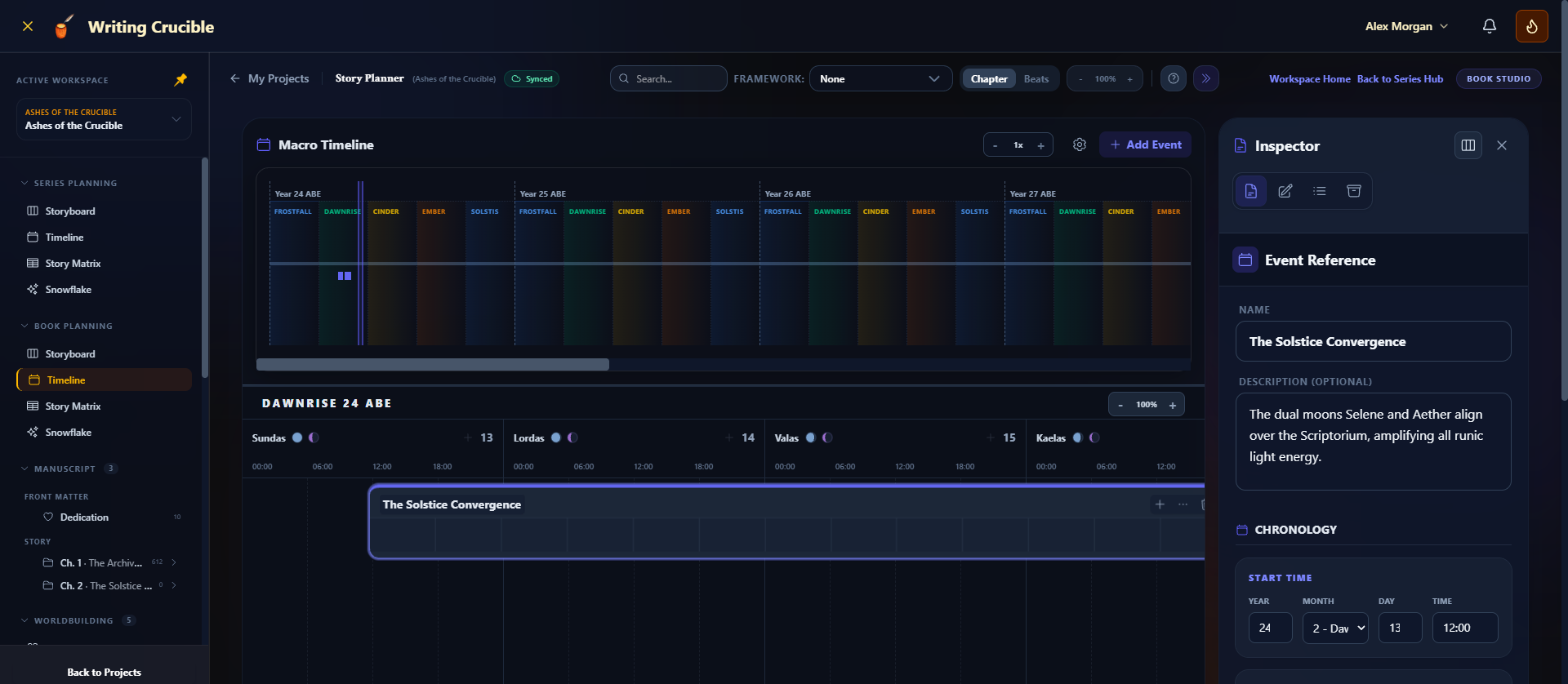
The new event opens in the Inspector under Event Reference. Changes save automatically.
Name and Description (Optional).
Start Time: year, month, day and, depending on your calendar settings, a time.
Add End Date to make the event span several days. Click Remove to make it a single moment again.
Color Code for the event's bar and card.
Plot Threads the event belongs to.
3. Find it later
Click an event's bar on the Macro Timeline, or its card in the calendar, to open it in the Inspector again.
4. Delete it
Open the event in the Inspector, click Delete Event at the bottom, then Delete. Or hover over the event's card in the calendar, click the bin (Delete Event), then click Confirm within three seconds. Deleting an event doesn't delete its scenes.
Putting scenes on the Timeline
In Book Planning, you can give scenes a date by placing them on the calendar:
Drag a scene onto a day: open the Inspector's Unassigned Scenes tab and drag a scene onto a day in the calendar. Scenes already on the calendar can be dragged to another day the same way.
Drag a scene into an event: drop it inside an event's card, on the day you want, to make it part of that event.
Add a new scene to an event: hover over the event's card and click the + (Add Scene to Event). A New scene is created on the event's first day and opens in the Inspector. It starts as an unassigned scene until you drag it into a chapter on the Storyboard.
Click a scene on the calendar to edit it in the Inspector. Search... in the toolbar works here too: events whose name, description or scenes don't match are hidden.
Setting up your calendar
Click the gear icon (Calendar Settings) next to Add Event.
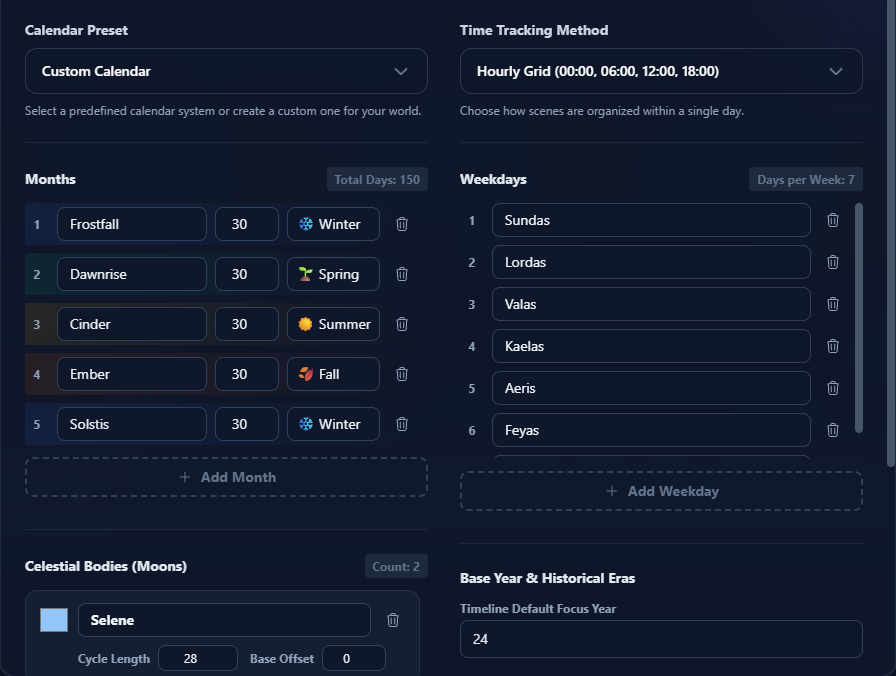
Calendar Preset: Gregorian (Standard Earth), Symmetrical Earth (13 Months), Standard Lunar, Julian Calendar or Custom Calendar. Choose Custom Calendar to rename months, change their length, or add and remove them with Add Month.
Months: give each month a season (Winter, Spring, Summer or Fall). Seasons tint the Macro Timeline.
Time Tracking Method: an hourly grid, the four parts of the day (Morning, Afternoon, Evening, Night), or none. This decides whether events have a time and how each day is divided.
Weekdays: the names and number of days in your week.
Celestial Bodies (Moons): click Add Moon, then set its name, colour, Cycle Length, phases and Base Offset.
Base Year & Historical Eras: Timeline Default Focus Year is where the Timeline opens and where new events start. You can also pick which weekday the first day of that year falls on, and tick Format negative years with an era (e.g. BC) to label years before and after an era.
Click Save Calendar to apply your changes.
Planning a series
The Timeline under Series Planning shows the series' own events together with the events from every book in the series, so you can see the whole saga in one place. When the series has its own calendar, its books' Timelines use that calendar too, so set up the calendar from the series Timeline. In a book, Calendar Settings then opens read-only, marked Inherited Calendar.
If you take a book out of its series, the series' timeline events assigned to that book go with it. See "Moving a book into or out of a series" in Creating a New Series.
Free plan limits
On the Free plan, each book can have 10 timeline events. The series Timeline counts the series' events and all its books' events together. See Story Planner Overview.