Export your book as a Word document (DOCX) or a PDF to send to an editor, print a draft, or keep a copy outside Writing Crucible. You choose which sections to include, and the file downloads straight to your computer.
Before you start
Your plan: exporting is included in every paid plan and in the free trial. On the Free plan, the export buttons open an upgrade message instead. See Free Trial, Upgrading and Cancelling.
Two-factor authentication: an export takes your manuscript out of the app, so you need two-factor authentication set up first. If you haven't, you'll see Secure your account first when you export. Click Set up now, follow Setting Up Two-Factor Authentication (MFA), then come back and export again.
Export your book
1. Open the export
Open any section of the book in the Manuscript Editor. In the toolbar, click Export DOCX or Export PDF. On a title page, copyright page or contents page, these buttons are at the top of the page. While a change there is saving, they wait until it's saved, so the file has your latest change.

2. Choose the sections
The Export to DOCX (or Export to PDF) window lists every section of the book in order, with its word count. Nothing is selected to begin with. Click the sections you want, or click Select All Sections to include everything (click it again to clear the selection). The total word count of your selection appears at the bottom. A contents page shows Made from your sections instead of a word count, because the export builds it from the sections you choose.
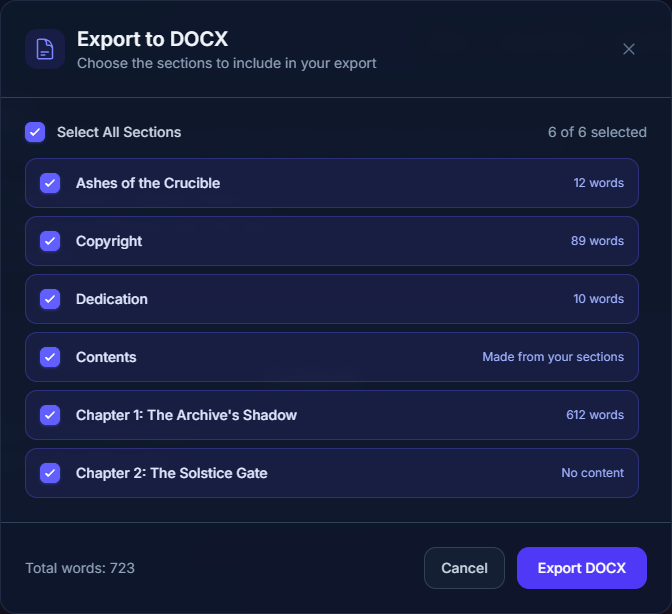
3. Export
Click Export DOCX (or Export PDF). When it's ready, the file downloads, named after your book, for example ashes_of_the_crucible_export.docx.
What's in the file
Your sections, in book order, each starting on a new page under its heading, such as "Chapter 3: The Storm", "Prologue" or "Acknowledgments". A title page or copyright page made with the form has no heading. A title page you wrote yourself is headed by its title if you gave it one, and has no heading if you didn't.
A title page. If you include your Title page section and it uses the form, it's laid out from the form: centred, with the title large, then the subtitle, your other lines, the series line and the author name. If you don't include a Title page section, one is added, laid out the same way from the book's title, subtitle, series and pen name. The name is the book's pen name, or the series', or your account's, or your display name, and "Author" if none of these is set. A title page you wrote yourself is exported as you wrote it, and no other title page is added.
Your copyright page. One made with the template is printed in small type from its fields, always with the book's current ISBN. One you wrote yourself is exported as you wrote it.
A contents page, in both DOCX and PDF. If you include your own Contents section, the contents go where that section is and list what its options say. If you don't, one is added after your title page, copyright, dedication and epigraph, headed "Table of Contents" in DOCX and "Contents" in PDF. It lists everything after it, with parts as headings. Either way, only the sections you export are listed, and anything you typed into a Contents section isn't used. If there's nothing to list, no contents page is added.
Your formatting: bold, italics, underline, headings, block quotes and lists come across.
The Word file uses Times New Roman at 12 point, one-inch margins and page numbers in the top-right corner, so it's easy to edit or restyle. The PDF is A4 and uses Times.
Page numbers in the contents: in the Word file, the contents is a Word contents field. When you open the file, Word offers to update the document's fields. Accept, and Word adds a page number to each entry. If you don't, or the app you open it in doesn't update fields, the contents is a plain list of your sections. The PDF's contents is a plain list, without page numbers.
The way the editor displays title pages, dedications and copyright pages you've written yourself (centred, italic or small) is for the editor only and doesn't carry over to the exported file. Title and copyright pages made with the form are laid out for you, as described above.
If something goes wrong
If you see Failed to export manuscript., try the export again. If it keeps happening, contact support.