Your profile is the name and short bio other people see when you work together. This guide also covers how you sign in: your password, your account email and your Google connection. Keeping these up to date means you can always get back to your manuscripts.
Editing your profile
Open the account menu in the top-right corner and choose Settings. The Profile tab opens first.
Change your Display Name, Pen Name or Biography.
Click Save Profile Changes.
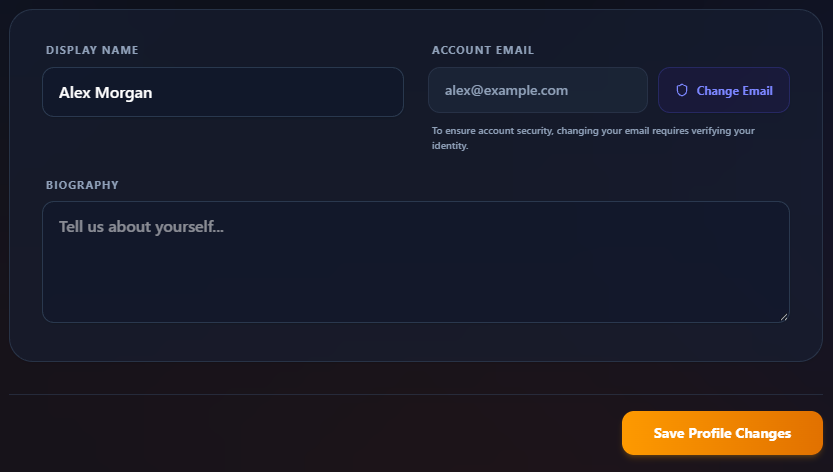
Your pen name is the name on your title pages, unless a book or series sets its own. If you leave it empty, your display name is used. When you change your pen name or display name, your books' title pages are updated as the profile saves. If any couldn't be, a message beside the save button says how many: click Save Profile Changes again to retry. Each book also updates the next time you open it. See Sections: Chapters, Front Matter and Back Matter.
Your display name is how you appear to other people, for example in messages. Your Account Email is shown here but can't be typed over. Use Change Email next to it instead (see below).
The Profile tab also shows your plan, with a button to upgrade or manage billing. See Free Trial, Upgrading and Cancelling. The Beta Reader card lets you sign up to read other authors' books; that has its own article.
Adding a password to a Google account
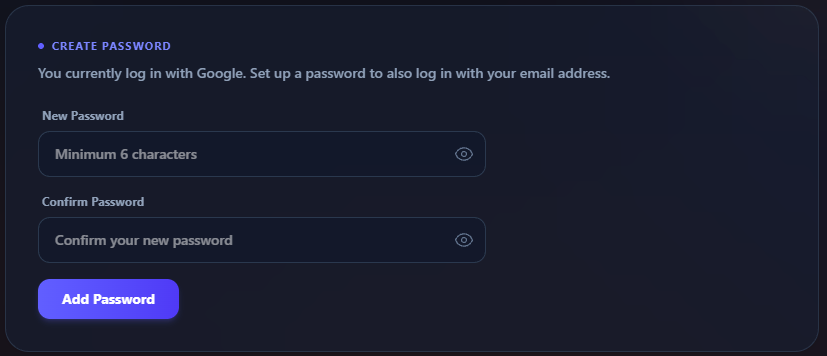
If you signed up with Google, you can add a password as well. Then you can sign in either way, which is handy if you ever lose access to your Google account.
Go to Settings → Security.
In the Create Password card, enter a New Password and type it again in Confirm Password. It needs at least 6 characters.
Click Add Password.
From now on you can sign in with Google or with your email address and this password.
Changing your password
Go to Settings → Security.
In the Change Password card, enter your Current Password, then your New Password twice. It needs at least 6 characters.
Click Update Password.
If you've set up two-factor authentication, a 2-Step Verification window asks for your code before the change goes through.
If you forgot your password
On the sign-in page, type your email address first, then click Forgot your password?
Open the email we send you and click the link.
On the Reset Your Password page, enter your New Password and Confirm New Password, then click Reset Password.
Click Go to Sign-in and sign in with your new password.
If the page says the link is invalid or has expired, go back to the sign-in page and request a new one.
Changing your account email
To keep your account safe, you need to confirm it's really you before the email can change.
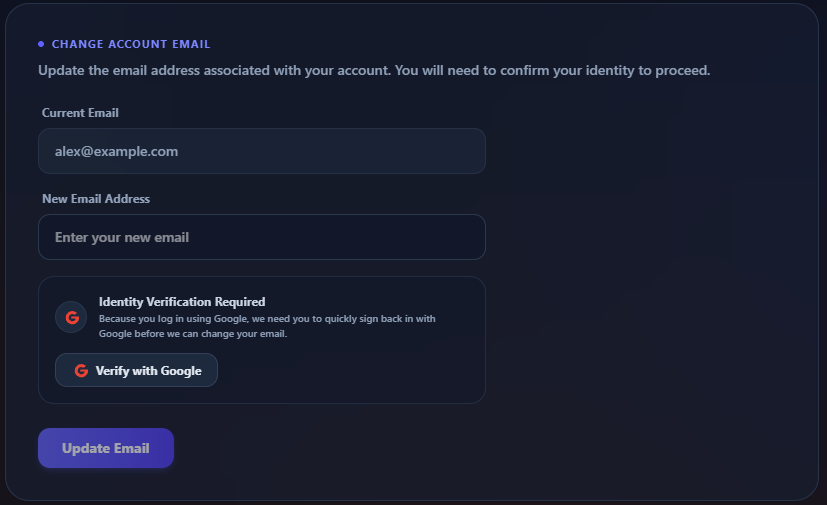
Go to Settings → Security and find Change Account Email. (The Change Email button on the Profile tab takes you there too.)
Enter your New Email Address.
Confirm who you are:
If you sign in with a password, type it into Confirm Your Password.
If you sign in only with Google, click Verify with Google and sign in to Google in the window that opens. When it works you'll see a green confirmation.
Click Update Email.
Open the verification link we send to your new address. Your email doesn't change until you click that link.
If you've set up two-factor authentication, you'll also be asked for a code. If you see This email address is already in use by another account., that address already belongs to a different Writing Crucible account.
Connected accounts
Under Connected Accounts on the Security tab you can link Google, so you can sign in with one click.
Click Connect next to Google and choose your Google account.
Click Disconnect to remove it.
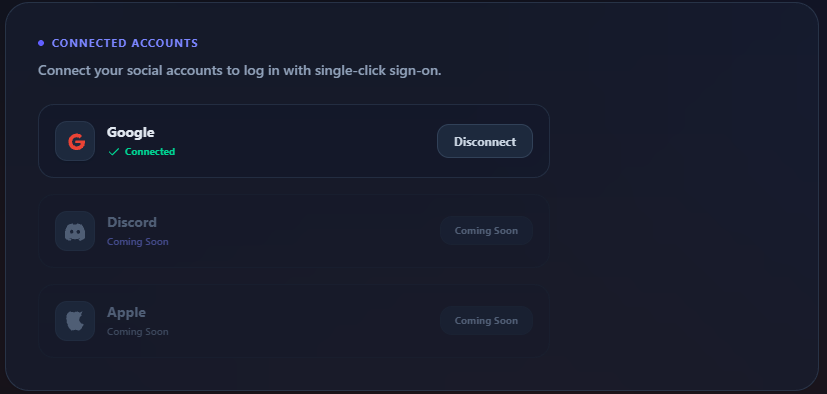
Discord and Apple are marked Coming Soon.
To stop you locking yourself out, you can't disconnect Google if it's your only way to sign in. Add a password first (see above), then disconnect. A Google account can only be linked to one Writing Crucible account at a time.
If an action asks you to sign in again
Some changes need a recent sign-in. If you see a message saying the operation requires recent authentication, sign out, sign back in, and try again.
Two-factor authentication
The Security tab is also where you set up two-factor authentication and backup codes. See Setting Up Two-Factor Authentication (MFA).