Already built your world in Campfire? You can bring your characters, places and lore into Writing Crucible from a Campfire export, instead of retyping them. You review everything before anything is saved, and each sheet becomes a worldbuilding element you can edit.
What you need
A Word document (.docx) of your whole Campfire project, exported from Campfire. The import is tested with Campfire's full project export. The file can be up to 25 MB.
Your file is read in your browser. Nothing is saved until you click Import.
Where to start an import
Worldbuilding: click Import at the top of the page, next to + Create Element....
Your book's dashboard or the Series Hub: under Worldbuilding in another app?, click Import worldbuilding. From the Series Hub, everything goes into the series' shared library.
With your manuscript: when you use Import a manuscript with a Campfire export, the worldbuilding sheets can come in at the same time. See below.

These options appear only for books and series you can edit.
Importing step by step
1. Choose your file
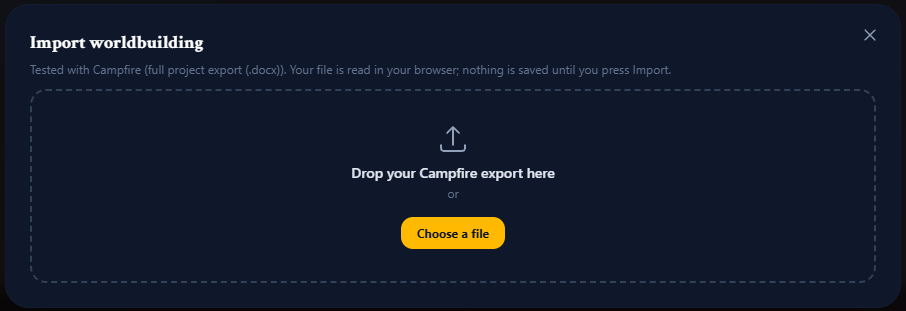
In Import worldbuilding, drop your Campfire export onto the box, or click Choose a file.
2. Review what was found
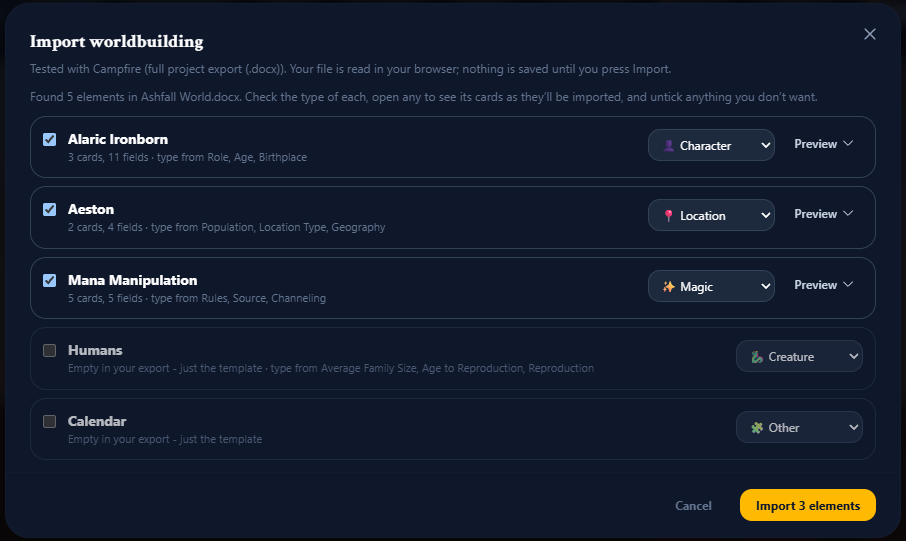
Each sheet in your export is listed as an element, with how many cards and fields it has. For each one you can:
Tick or untick it to include it or leave it out.
Change its type (Character, Location, Organization and so on). Campfire doesn't say what type a sheet is, so Writing Crucible guesses from its fields. For example, Role, Age and Gender suggest a Character, and Population suggests a Location. The fields it used are shown, such as type from Role, Age. Sheets with no clear match are set to Other.
Click Preview to see its cards exactly as they'll be imported.
Some rows are unticked to start with:
Empty in your export - just the template: a sheet you never filled in. There's nothing to import.
Already in this world: an element with the same name already exists. It's skipped. Tick it to add it as a new element alongside the existing one. The existing element isn't changed.
3. Click Import
The button shows how many elements will be imported, for example Import 12 elements. When it's done, you're taken to Worldbuilding, where a message confirms how many elements came in.
If a type turns out wrong after importing, you can still change it: on All Elements, hover over the element, click the pencil, and pick the right Type in Edit Element Settings.
How Campfire sheets become elements
Each sheet becomes one element, named after the sheet.
Each panel or group of fields (Overview, Attributes, Backstory and so on) becomes a card. Groups you left empty are left out. The cards are laid out in two columns, and you can move and resize them like any others.
Each filled-in field becomes a field on its card. Writing Crucible uses a specific field type only when your value fits it exactly. Otherwise, the value stays as text, so nothing you wrote is changed or lost:
A rating out of ten in whole or half points, such as 7.5 / 10, becomes a Slider.
A number, such as 1,070 or 18 Years, becomes a Number. A unit moves into the label, for example Age (years).
A short comma-separated set, such as Boots, Cloak, Tunic, becomes Multi-Choice.
Anything else becomes Short Text, or Long Form Text if it's long.
Paragraphs become Long Form Text, with their formatting. A short bold line above some text becomes that text's label.
A simple bulleted list becomes a List field. Numbered or formatted lists stay as formatted text.
Left out: empty fields, number fields still at zero in a group you never filled in, and Campfire's "Links export coming soon!" placeholder. Campfire doesn't export links between sheets, so relationships need adding again. See The Relationship Map.
Each imported element gets a Baseline version at Book 1, Chapter 0, noted "Imported from" your file's name. Imported elements have no tags, so add any you use. See Worldbuilding Versioning.
Importing with your manuscript
When you import a manuscript from a Campfire export, the review lists the worldbuilding sheets it found separately, since they aren't part of your book. Tick Also import the [number] with content into this book's Worldbuilding (it's ticked by default) and they're added when the book is created. Empty templates are left out. Open Preview the [number] elements as they'll be imported to check them first.
This route doesn't let you pick elements or change types. If you want to pick elements, untick the option, and import from Worldbuilding afterwards with the same file. A wrong type can be changed afterwards in the element's settings.
If the book is imported but its worldbuilding isn't (for example, because of the Free plan's limit), you'll see Your book was imported with the reason. You can import the worldbuilding later from the book's Worldbuilding page using the same file.
On the Free plan
The Free plan includes 5 worldbuilding elements and 10 versions across all your books (the example project doesn't count). Each imported element uses one element and one version. If you choose more than you have room for, you'll see how many more you can add, and Import stays disabled until you untick some. Paid plans have no limit.
If something goes wrong
Choose a Word document (.docx) exported from your worldbuilding app. The file isn't a .docx. Export from Campfire as a Word document.
This file is too large to import. The file is over 25 MB.
We didn't find any worldbuilding in this file. The file doesn't contain worldbuilding sheets. Export your whole Campfire project as a Word document, not just the manuscript.
We couldn't read this document. If it opens in Word, export it from Campfire again and import the new copy.
This import is too large to send in one go. Untick some elements, import those, then import the file again for the rest.
[number] of [number] elements were imported, then saving stopped. Import the file again. The elements already imported are skipped, so only the rest are added.