The Story Matrix is a grid of your chapters against your plot threads. Each row is a storyline, such as the main plot, a romance or a mystery, and each column is a chapter. It shows at a glance where every thread appears, and where one goes quiet for too long.
Opening the Story Matrix
In the project sidebar, under Book Planning, click Story Matrix. Your scenes appear in the cell where their chapter meets their plot thread. Scenes that aren't in any plot thread sit in the General / Unassigned row at the bottom.
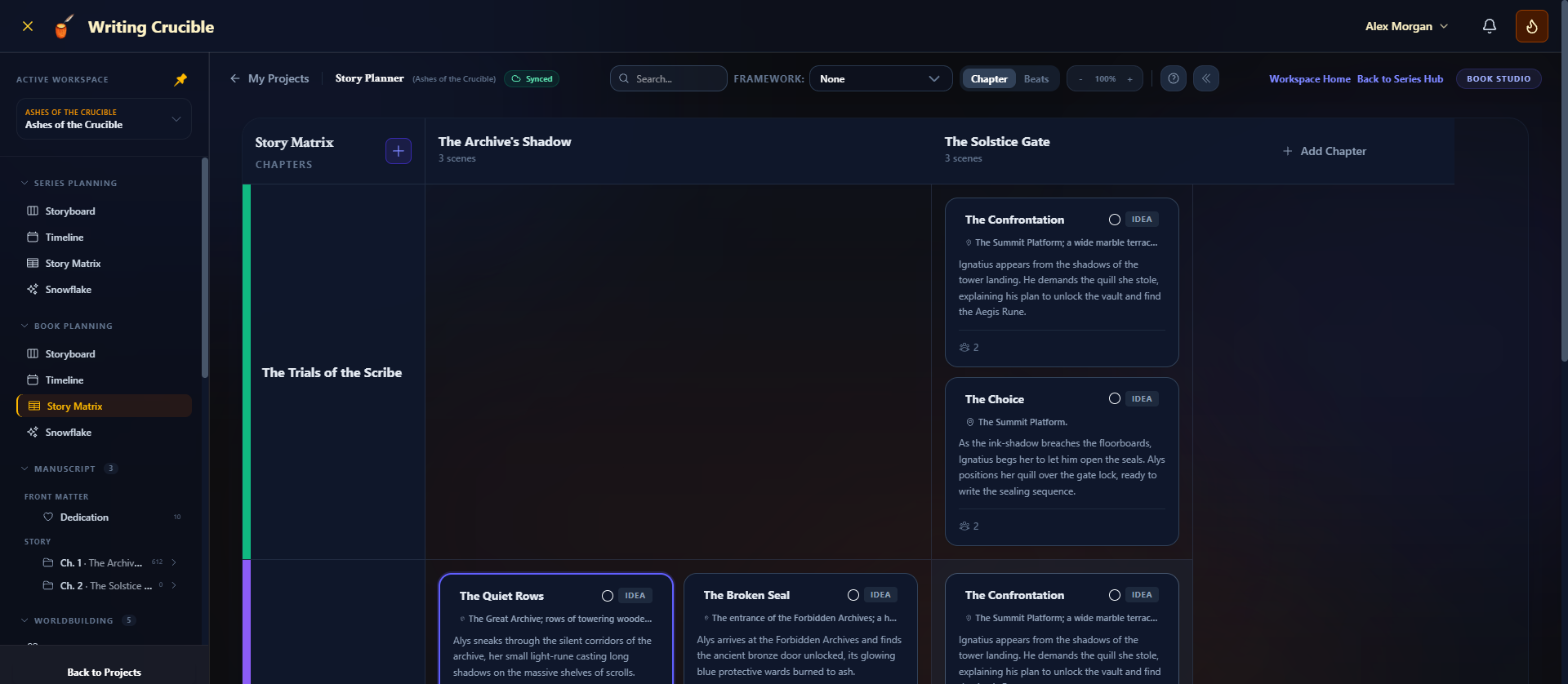
Creating plot threads
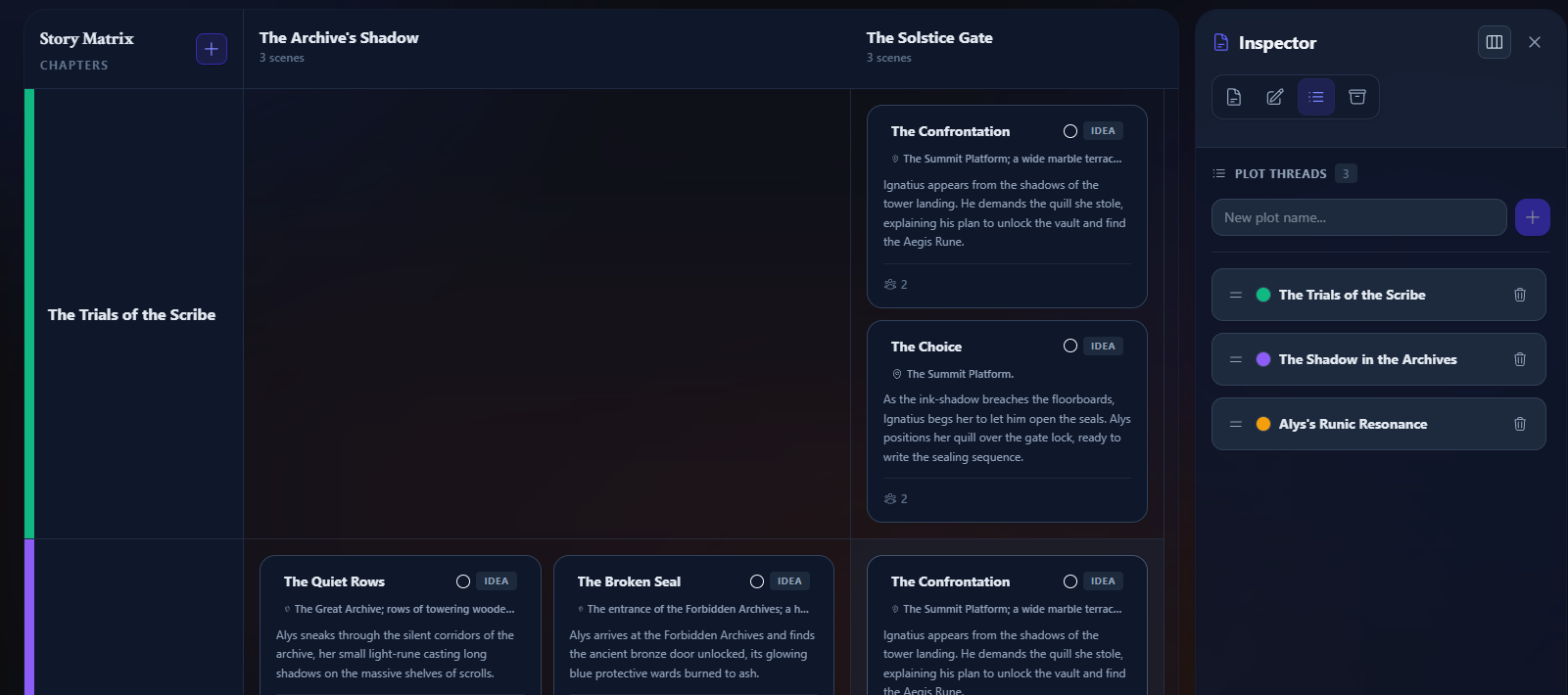
1. Open the Plot Threads tab
Click Add / Manage Plots below the last row, the + in the top-left corner of the grid, or any plot thread's name. The Inspector opens on the Plot Threads tab.
2. Add a thread
Type a name in New plot name... and press Enter or click +. Each new thread gets its own colour.
3. Organise your threads
Click a thread's name to rename it.
Hover over its colour dot to pick another colour.
Drag the handle on the left to change the order of the rows.
Click the bin, then Delete Plot, to remove a thread. Your scenes aren't deleted. Scenes that were only in that thread move to General / Unassigned.
Placing scenes
Add a scene to a cell: hover over the cell and click the + in its corner (Add Scene here). The scene is added to that chapter and that plot thread.
Move a scene by dragging: drag its card to another cell. Dropped in another row, the scene leaves the thread it was dragged from and joins the new one; its other threads stay. Dropped in another column, it moves to that chapter. Dropping it in the General / Unassigned row takes it out of all its threads.
Change a scene's threads in the Inspector: click the scene to open it, then use the Plot Threads section at the bottom of its details. Click + Assign to add a thread, or click an assigned thread to remove it.
Add a chapter: click Add Chapter at the end of the column headers.
Edit a chapter: click its column header to open it in the Inspector.
A scene can belong to more than one thread, and it appears in each of those rows. Its first thread is its Primary; in the other rows the card is shown faded, so you can tell where the scene really belongs. Use the arrow next to a thread in the scene's Inspector to change which one comes first.
When a cell holds three or more scenes, its column widens to show them in two columns.
Viewing by beats
Pick a structure from Framework: in the toolbar and switch from Chapter to Beats. The columns become the framework's beats, so you can see which threads carry each part of the story. Scenes only appear here once they've been given a beat; see Storyboard.
In Chapter view, unassigned scenes don't appear in the grid, because they don't have a chapter yet. In Beats view they do, if they have a beat.
The - and + zoom controls in the toolbar shrink or enlarge the whole grid. Search... fades the cards that don't match.
Planning a series
Under Series Planning, the Story Matrix has one column per book, and the cards are each book's timeline events, arranged by plot thread. The rows include the series' plot threads and those of every book. Drag an event to another row to change its thread, or to another book's column to move it into that book.