Already written some or all of your book? Import it from a Word document instead of pasting it in chapter by chapter. Writing Crucible reads the file, splits it into chapters, spots your front and back matter, and lets you check everything before anything is saved.
What you can import
Word documents (.docx). The importer has been tested with files from Microsoft Word and with Campfire exports (both manuscript and full project exports). Other .docx files usually work too.
Other formats such as .doc, .odt, .rtf or .pages aren't read directly. Open the file in your writing app and save or export it as a Word Document (.docx) first.
One book per file. Files over 25 MB can't be imported. If a file holds several books, split it into one file per book.
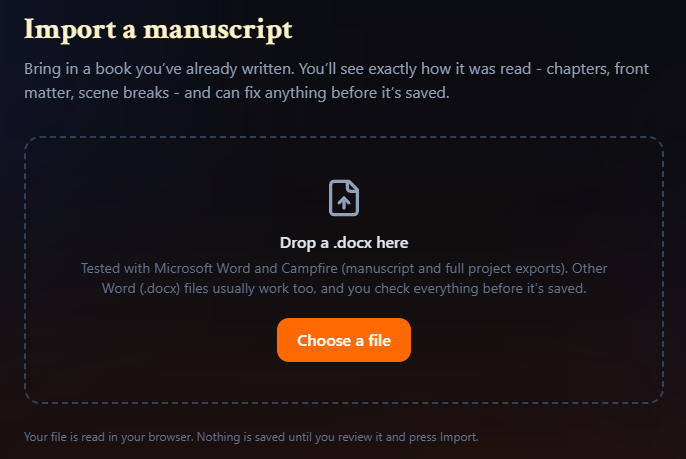
Your file is read in your browser. Nothing is saved until you've reviewed it and pressed Import.
Start an import
There are two ways in:
On the Author Dashboard, click Import a manuscript.
In the Start your book dialog, click Already written some? Import a Word file.
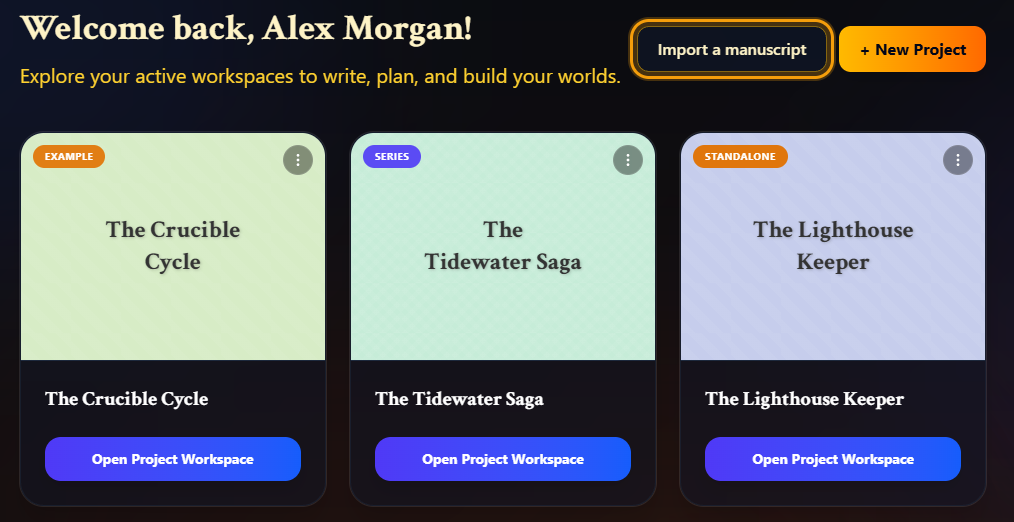
An import always creates a new standalone book. If you've already reached your plan's book limit, you'll be asked to upgrade before you go any further.
On the Import a manuscript page, drop your .docx onto the box or click Choose a file.
What gets detected
Chapters, from your headings, lines starting "Chapter", page breaks or short bold lines, whichever fits your document best. "Chapter 3" labels are dropped from the titles because Writing Crucible numbers chapters for you.
Prologue, interludes, epilogue and parts. A part heading is kept as a heading at the top of the section after it.
Front matter: a title page, copyright page, dedication, epigraph, contents page, and a foreword, preface or introduction. If the file opens with a title page, its title is suggested as the book title. A contents page you typed is replaced by one made from your sections; the text you typed is kept with the section, and you can still read it there.
Back matter such as acknowledgments, about the author, also by, an afterword, glossary, appendix or author's note.
Scene breaks such as ***, # or a symbol your manuscript uses throughout.
A few things are handled differently from the original:
A table of contents generated by Word isn't imported, because its page numbers would be out of date. You can import it anyway if you want it.
Images aren't imported yet.
Tables are flattened into plain text.
Footnotes and endnotes move to the end of their chapter.
Tracked changes are accepted (insertions kept, deletions left out), and comments are left out.
The review screen lists anything like this that applies to your file.
Review your import
The Review your import screen shows the outline on the left and your manuscript on the right, exactly as it will be split.
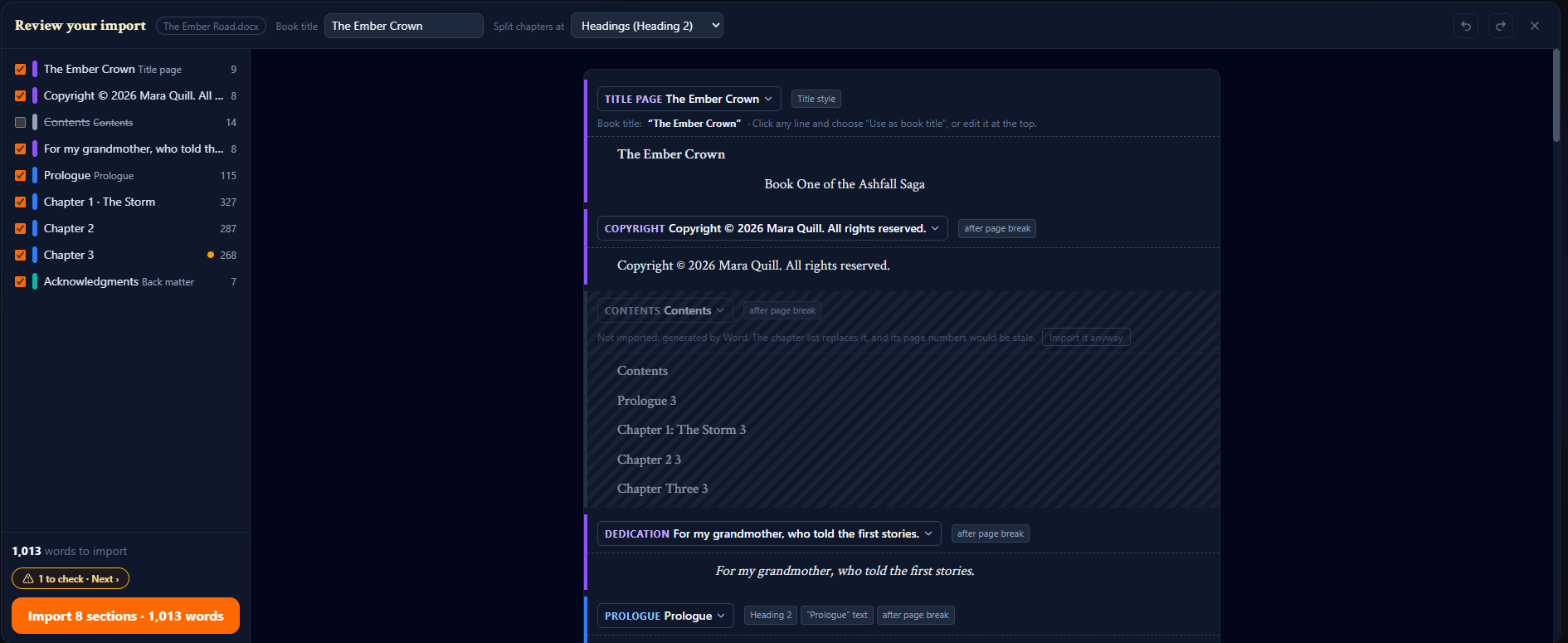
Book title: edit it at the top, or click any line in the manuscript and choose Use as book title.
Split chapters at: if the chapters came out wrong, try a different rule: Headings, Lines starting “Chapter”, Page breaks, Short bold lines or Don’t split chapters. Your other corrections are kept when you switch.
Things to check: anything the importer wasn't sure about is marked with an amber dot. Click to check · Next › to jump to each one, then answer the question, for example Start a chapter here or Not a chapter, or Looks right and Merge into previous.
Change a section: click the type label at the top of a section to rename it, change what kind of section it is, merge it into the previous one, or leave it out with Import this section.
Split or add a scene break: click any paragraph and choose Start a section here or Add a scene break above.
Leave sections out: untick any section in the outline.
Made a mistake? Use the undo and redo buttons at the top. To give up without saving, click the close button.
Import
The outline shows how many words you're about to import, next to your plan's word limit. When you're happy, click the Import … sections button at the bottom of the outline, check the summary, and click Import.
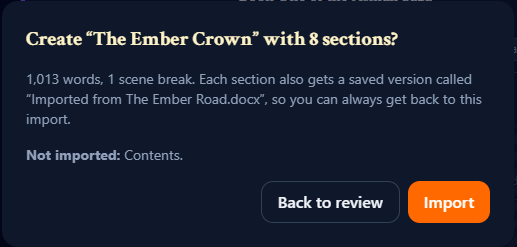
Your new book opens in the editor at its first chapter. Each section also gets a saved version called Imported from followed by your file name, so you can always get back to the text as it was imported. See Manuscript Versioning (Save & Restore).
Campfire worldbuilding
A Campfire full project export also contains your characters, places and other worldbuilding sheets. These aren't part of the manuscript, so they never go into the book. Instead, the review screen lists them and offers to import the ones with content into the new book's Worldbuilding as elements you can edit. Their types are guessed, so check them afterwards. If one is wrong, open the element's settings from its card in Worldbuilding (the edit button) and change its Type. Expand the preview to see each element before you import.
If a sheet is really a chapter, click It’s a chapter on it to bring it back into the book.
If the book imports but its worldbuilding can't be saved (for example, because of the Free plan's worldbuilding limit), you'll see Your book was imported with the reason. You can import the worldbuilding later from the book's Worldbuilding tab using the same file. See Importing Worldbuilding from Campfire.
Limits and messages
Book limit: an import creates a book, so it needs room under your plan's book limit.
Word limit: imported words count toward your plan's word limit, front and back matter included. If an import would take you over, the outline says Over your plan’s limit. Untick sections or upgrade. We won’t choose what to leave out.
Size: one import can create up to 240 sections. Very long sections or very large books may need splitting; the message tells you what to do.
One prologue: a book can have only one prologue, so change any others to chapters before importing.
If you see We couldn’t read this document, open it in Word, save it again as a .docx, and import that copy.