Manuscript versioning lets you save and restore previous drafts of a chapter. It is designed for draft history and rollback, allowing you to experiment or revise with confidence.
Manuscript versioning applies only to the chapter you are editing and is separate from worldbuilding versioning.
What Manuscript Versions Are (and Aren’t)
Manuscript versions are:
saved restore points for a single chapter
used to roll back text changes
helpful when experimenting or revising
Manuscript versions are not:
worldbuilding versions
chapter-to-chapter continuity tools
automatic snapshots taken while typing
When Versions Are Created Automatically
Versions are not created automatically during normal editing.
A safety backup version is created automatically when you restore a version, allowing you to undo the restore if needed.
How to Save a Version

Open the Manuscript Editor and select a chapter.
Click Create Version in the editor toolbar.
Enter a version name (required).
Optionally add comments to describe the change.
Click Save Version.
The version is saved to that chapter’s version history.
How to Restore a Version

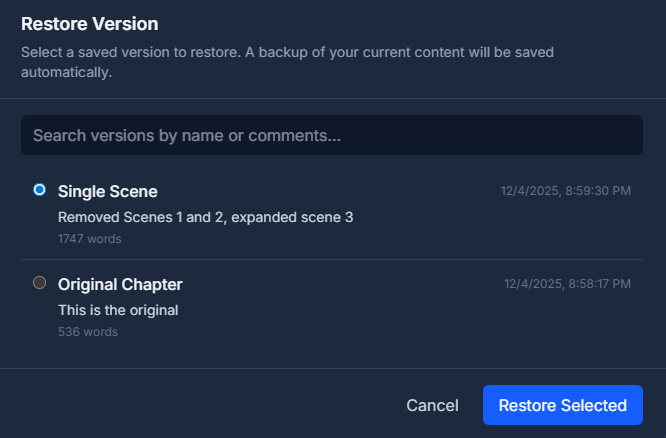
Click Restore Version in the editor toolbar.
(Optional) Use the search bar to filter versions by name or comments.
Select a version.
Click Restore Selected.
Before restoring, the editor automatically saves a backup of your current content.
What Gets Saved in a Version
Each manuscript version includes:
chapter text
word count
version name
optional comments
timestamp
If You Don’t See Any Versions
You may see messages like:
“No versions yet. Create one from the toolbar.”
“No versions match your search.”
These appear when no versions exist or when search filters don’t match any saved versions.
Plan Limits (Version History Retention)
Version history availability depends on your plan:
Free: No version history
Plotter: 30 days
Author: 90 days
Professional: Unlimited
If your plan doesn’t include version history, you’ll be prompted to upgrade when attempting to create or restore a version.
Restore Safety Checks
When restoring a version, the editor checks your plan’s word-count limit.
If restoring a version would exceed your limit, the restore is blocked and a word-limit warning is shown.