Every book and series has its own workspace: one place for your manuscript, your plans and your world. This tour shows where everything lives, so you always know how to get to the part you need.
Opening a workspace
On the Author Dashboard, click Open Project Workspace on a book or series card. The workspace opens on its home page. A standalone book opens its Book Studio; a series opens its Series Hub. The badge in the top-right corner tells you which one you're in.
Workspace Home
A book's home page shows its cover, genre, description, status and chapter count, and a progress bar if you've set a target word count. Below that are five shortcuts:
Write Manuscript opens the editor at the start of your story.
Story Planner opens your storyboard, timeline, story matrix and snowflake outline.
World Lore opens your worldbuilding.
Analytics shows your writing progress.
Settings holds the book's details, cover and collaborators.
Further down, the Manuscript list shows every section of the book with its word count and status. Click Write on any section to open it, or Add section to add a new one.
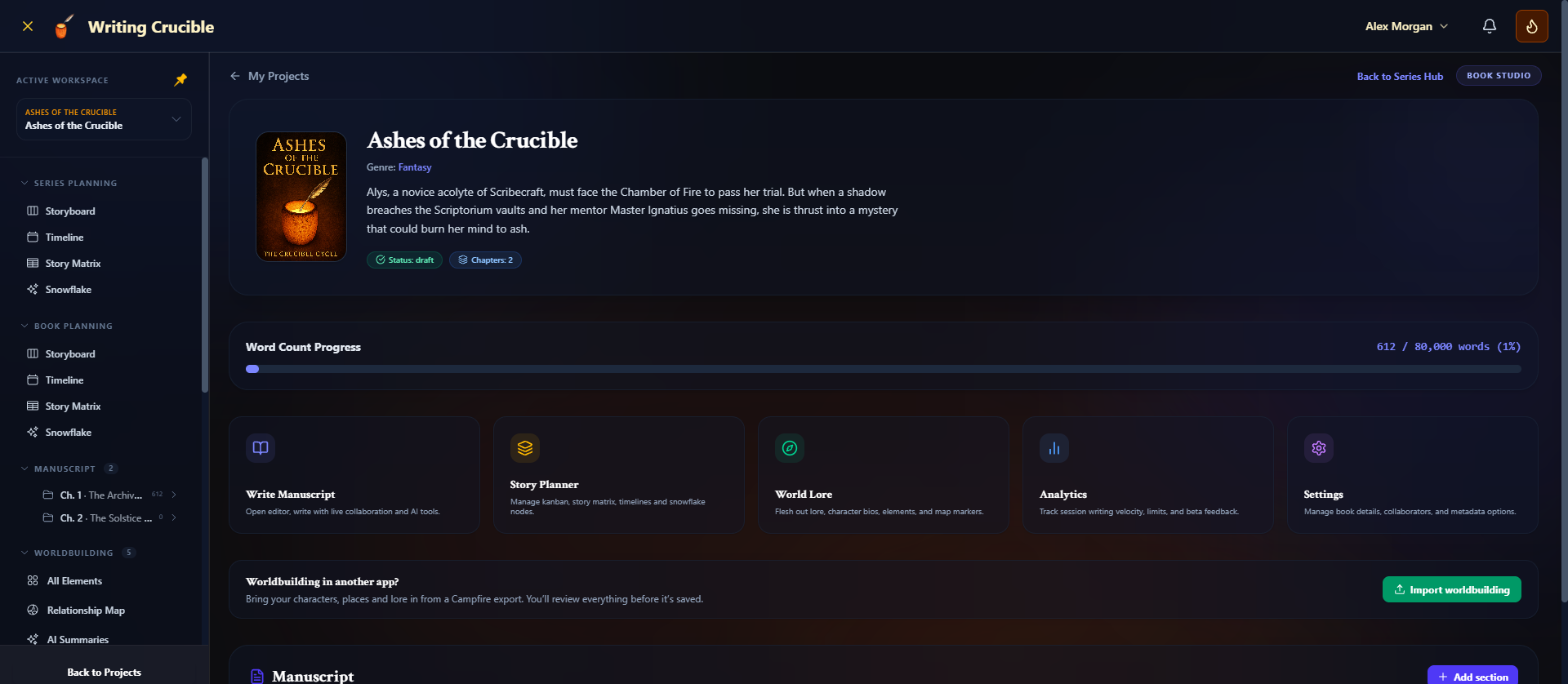
Wherever you are in the workspace, click Workspace Home at the top right to come back here. On smaller screens and phones, the link is called Home and sits at the end of the top row, and the badge isn't shown.
The Series Hub
A series has a hub instead of a single book page. It shows the series' combined word count, a chart of how much each book contributes, and shortcuts to Series Board, Series Lore Portal, Series Analytics and Series Settings.
Under Books in this Series, click Write on a book to open that book's own workspace, or Add Book to add another. While you're working in a book that belongs to a series, Back to Series Hub appears at the top right (Series Hub, next to Home, on smaller screens).
A standalone book you've already started can join a series later, and a book can leave its series, from the book's Settings. See "Moving a book into or out of a series" in Creating a New Series.
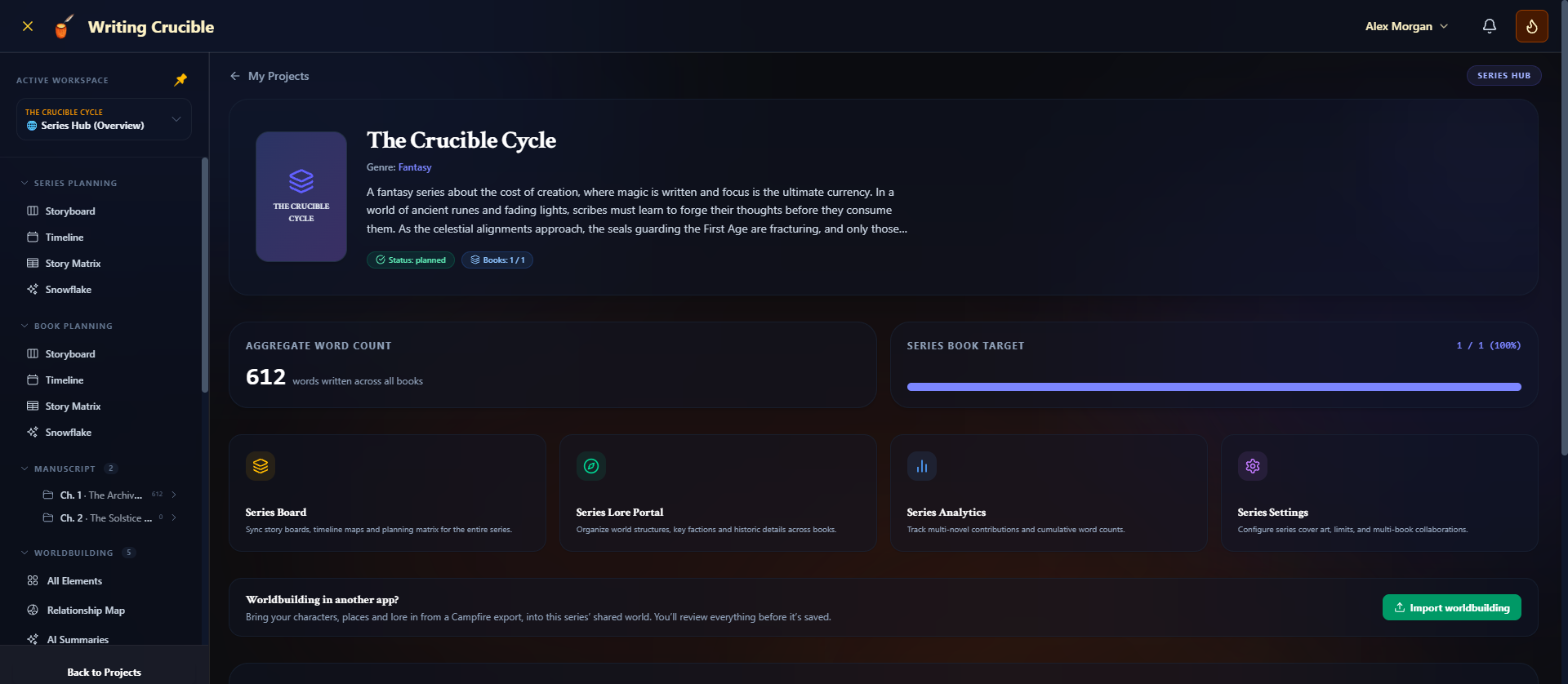
The sidebar
The sidebar on the left is how you move around the workspace. From top to bottom:
Active Workspace
For a standalone book, this shows the book's title, genre and word count. For a series, it's a menu: click it to jump to 🌐 Series Hub (Overview) or to any book listed under Books in Series.
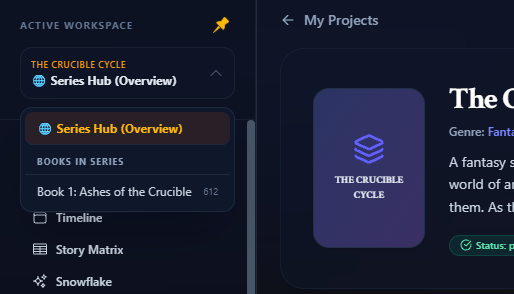
Series Planning and Book Planning
Links to the four planning views: Storyboard, Timeline, Story Matrix and Snowflake. Series Planning only appears in a series, and plans across all its books. Book Planning plans the book you're in. See Story Planner Overview.
Manuscript
The sections of your book. Click one to open it in the editor. If a chapter has scenes in its outline, click the arrow beside it to list them and jump straight to a scene. To add a section, hover over the Manuscript heading and click the + button. See Sections: Chapters, Front Matter and Back Matter for adding, ordering and organising sections.
Worldbuilding
All Elements, the Relationship Map and AI Summaries, followed by a folder for each type of element (characters, locations and so on). Hover over a folder and click + to create an element of that type. Click the star beside an element to pin it to the top of its folder. See How to Create Worldbuilding Elements.
Beta Reader Hub
Where you manage beta readers and read their feedback. That's covered in its own article.
Back to Projects
Returns you to the Author Dashboard. The My Projects link at the top left of the page does the same.
Pinning or hiding the sidebar
On a computer, click the pin button at the top of the sidebar to keep it open, or unpin it to give your writing more room. When it's unpinned, open it with the menu button in the top bar and it closes again when you click elsewhere. Your choice is remembered in this browser.
On a phone, the sidebar is always tucked away. Tap the menu button in the top bar to open it.
Switching projects
The Active Workspace menu switches between the books of one series. To work on a different project, click Back to Projects (or My Projects) and open it from the dashboard.
Guided tours
The first time you open a workspace, a short guided tour points out the sidebar and its sections. Use Next and Prev to move through it, or Skip Tour to close it. If you've just started your first book, the tour waits until your next visit so you can start writing straight away.
The editor's own tour waits until you've finished or skipped the workspace tour, so only one is open at a time.
The editor, Story Planner, worldbuilding and Beta Reader Hub each have their own tour. To see one again, click the ? button in that view's toolbar (its tooltip reads Restart Guided Tour).
Tours are remembered per browser, so you may see them again on another computer.